
Custom Integrations
Fountain integrates with custom elements of your workflow through a combination of webhooks and PUT requests.
In an example integration with a service that gets your applicants to download an app, the following process can be followed:
- When an applicant lands in a manual stage, a webhook fires to the 3rd party source with all of the applicant details, including phone number, and phone type.

- With the applicant's phone number, the 3rd party provider sends the applicant a text message to download the app based on the phone type.
- When the applicant downloads and signs into the app with their Fountain email address, the 3rd party provider sends a PUT request to Fountain to update the 'App Downloaded' label.
curl -X PUT -H 'Content-Type: application/json' -d '{"completed":true,"api_token":"secret-api-token"}' 'https://api.fountain.com/v2/applicants/22222222-0000-0000-0000-000000000000/labels/App%20Downloaded'- If the 'Auto-Advance when all labels are checked' setting is on in in your manual stage (you can toggle this in the Workflow Editor), the applicant automatically moves on to the next stage.
- If you wish to append data to the applicant, just do so with another PUT request before or after auto-advancing the applicant.
curl -X PUT -H 'Content-Type: application/json' -d '{"data":{"nickname":"bob"},"api_token":"o5YlmBZe1DVrcYJ8RRpH3w"}' ' https://api.fountain.com/v2/applicants/c6786558-1b20-4e44-b303-75e21b965ed7/'
NOTE: Want to reject an applicant from a 3rd-party source?Add data to an applicant using a PUT request, and update their label with another PUT request. Immediately after this manual stage, you can set a filter to move out applicants with the specific data that you added. We recommend setting a specific rejection reason when rejecting from a 3rd party source.
In the example below, we set up a filter to reject if we mark an applicant as inexperienced, then we use a PUT request to mark them, and another PUT to complete the "reviewed" label. The applicant will end up in Rejected with reason "Lacks experience":
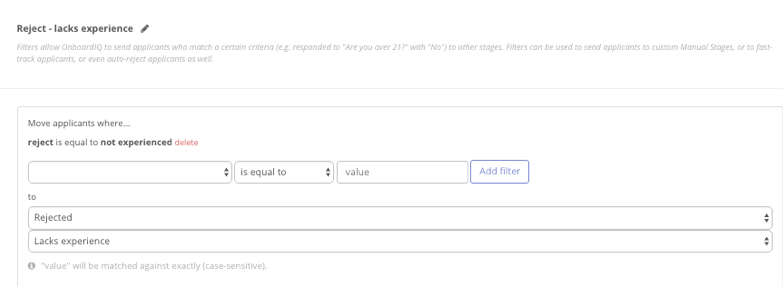
curl -X PUT -H 'Content-Type: application/json' -d '{"data":{"reject":"not experienced"},"api_token":"secret-api-token"}' ' https://api.fountain.com/v2/applicants/c6786558-1b20-4e44-b303-75e21b965ed7/'
curl -X PUT -H 'Content-Type: application/json' -d '{"completed":true,"api_token":"secret-api-token"}' 'https://api.fountain.com/v2/applicants/22222222-0000-0000-0000-000000000000/labels/reviewed'
NOTE: Why isn't there an 'advance applicant' API endpoint?There are many automated actions and possible functions from automatically advancing an applicant. To prevent applicants from landing in unwanted parts of the workflow, we use labels to record specifically why an applicant is moving out of a manual stage.
Slack Integration
Using Zapier, we can connect with any of your Slack channels, to keep your entire team up to date with applicant movements in Fountain. We frequently see team use this to remember to review documents, or perform any manual physical actions related to applicants. To set this up, set up a webhook to send to Zapier from the stage landing of your choice, and connect the Zap to Slack, posting in a channel automatically, etc. There are nearly infinite things you can accomplish with Zapier!
Syncing with HRIS
Many of our clients use HRIS system for applicant management, and payroll. Fountain can be setup to seamlessly communicate and sync with these systems.
When applicants land in the Approved stage, send a webhook to your HRIS system to notify it of the new applicant. Included in the webhook payload is all of the applicant information, including when the applicant landed in the approved stages.
If a worker leaves your organization, you can update their status to 'Inactive' within Fountain using a POST request. We'll respond with a confirmation. If you update an applicant within Fountain to Inactive or Active, we'll send a webhook to your HRIS automatically with the updated status.
Connecting a Custom Form to the Fountain Applicant Portal
Several clients choose to send host their hiring page on their primary website, and seamlessly forward applicants into the Fountain portal to increase conversion. To utilize this functionality, send our API an Applicant Create POST request, and we'll respond with an applicant_id. Append this applicant_id to the end of your portal URL, and redirect the applicant here. They'll automatically land in the first stage of the applicant portal. If you have set up several eligibility filters in Fountain, the applicant will receive the appropriate messaging based on their status in the workflow.