
Overview
The External Processing URL setting lets you connect a document requirement to your own external service. When a worker submits a document, Fountain will automatically send that document's data to your URL and wait for your service to reply before deciding the document's final status.
This gives you the power to plug in your own validation logic — for example, checking a third-party database, running custom fraud detection, or applying business rules that Fountain cannot know about.
How This Differs from Webhooks
It is important to understand that this feature is not a webhook.
| External Processing URL | Webhook | |
|---|---|---|
| Timing | Called before the document status is set | Called after an event has already happened |
| Fountain waits for your response | Yes — Fountain holds the document in a processing state until your service replies | No — Fountain fires and moves on |
| Your response changes the outcome | Yes — you can force approval or force manual review | No — the event already occurred |
| Purpose | Real-time decision-making that influences document status | Notifications and downstream integrations |
With a webhook, you are being told something happened. With the External Processing URL, you are being asked what should happen next.
When in the Document Lifecycle This Is Called
The External Processing URL is called after a worker submits a document and after Fountain's built-in AI/OCR analysis has run, but before the document's final status is recorded.
The sequence looks like this:
- Worker uploads their document and submits the form.
- Fountain's OCR engine reads the document — checking image quality, extracting field values, assessing confidence.
- Fountain's auto-approval logic evaluates whether the document meets the standard criteria (name match, confidence threshold, no manually edited fields, etc.).
- Fountain calls your External Processing URL with a summary of everything it knows at this point.
- Your service returns a response telling Fountain what to do.
- Fountain records the final document status — either Approved, Pending Review (manual queue), or whatever its own logic determined if your service did not override it.
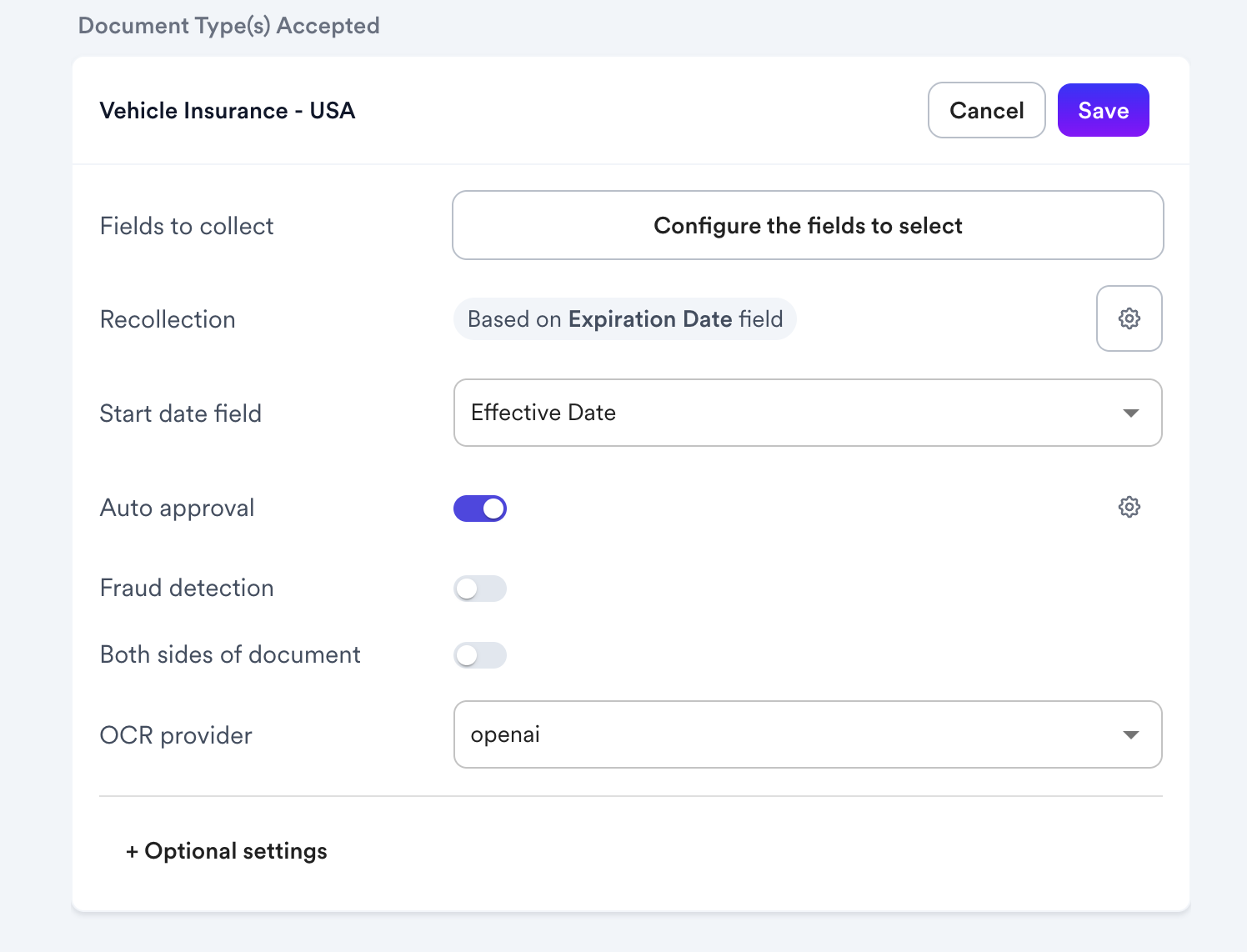
Important prerequisite: The External Processing URL only fires if auto-approval is enabled on the document type. If auto-approval is turned off, Fountain will not call your URL — all submissions go directly to manual review without this step running.
What Data Your Service Receives
Fountain sends an HTTP POST request to your URL with a JSON body containing the following fields:
| Field | Type | Description |
|---|---|---|
storageUuid | string | The unique identifier of the uploaded file in Fountain's file storage. |
glareFree | boolean | true if Fountain's OCR detected no glare on the document image. |
inFocus | boolean | true if Fountain's OCR detected the image is in focus. |
aiConfidenceLevel | number | Fountain's AI confidence score for the OCR read. Higher values mean the system is more confident in its extraction. |
manuallyEdited | boolean | true if the worker changed any field values that were originally extracted by OCR. This can indicate potential tampering. |
fields | array | The full list of field values the worker submitted on the document form. |
submittedAt | string | ISO 8601 timestamp of when the document was submitted. |
submittedByType | string | Who submitted the document — one of "WORKER", "EMPLOYER", or "SYSTEM". |
submittedBy | string | The UUID of the person or system that submitted the document. |
workerUuid | string | The UUID of the worker who owns this document submission. |
documentTypeUuid | string | The UUID of the document type being submitted. |
workerComplianceProfileUuid | string | The UUID of the worker's compliance profile. |
isAutoApproved | boolean | Whether Fountain's own auto-approval logic would have approved this document, before your service's response is considered. This lets you see what Fountain itself was going to do. |
What Your Service Must Return
Your service must respond with a JSON object containing two boolean fields:
{
  "forceAutoApprove": false,
  "forceManualReview": false
}
Both fields are required. Set each to true or false depending on what you want to happen.
Response outcomes
forceAutoApprove | forceManualReview | What happens |
|---|---|---|
false | false | Fountain uses its own auto-approval logic. Your service had no effect. |
true | false | The document is auto-approved immediately, regardless of Fountain's own assessment. |
false | true | The document is sent to the manual review queue for a human reviewer, regardless of Fountain's own assessment. |
true | true | The document is sent to the manual review queue. forceManualReview always wins when both are true. |
Read this carefully before going live: If you return
{ "forceAutoApprove": false, "forceManualReview": false }— which is what you would return if your service encounters an unexpected case and falls back to defaults — Fountain treats this as a neutral response and uses its own logic. This is the safe fallback. However, if you accidentally return{ "forceAutoApprove": true, "forceManualReview": false }for every document (for example, because your logic has a bug or you return this during testing), every document submitted for this requirement will be auto-approved without any human review. Make sure your logic only returnsforceAutoApprove: truewhen you have intentionally decided the document is valid.
Setting Up the Authorization Header
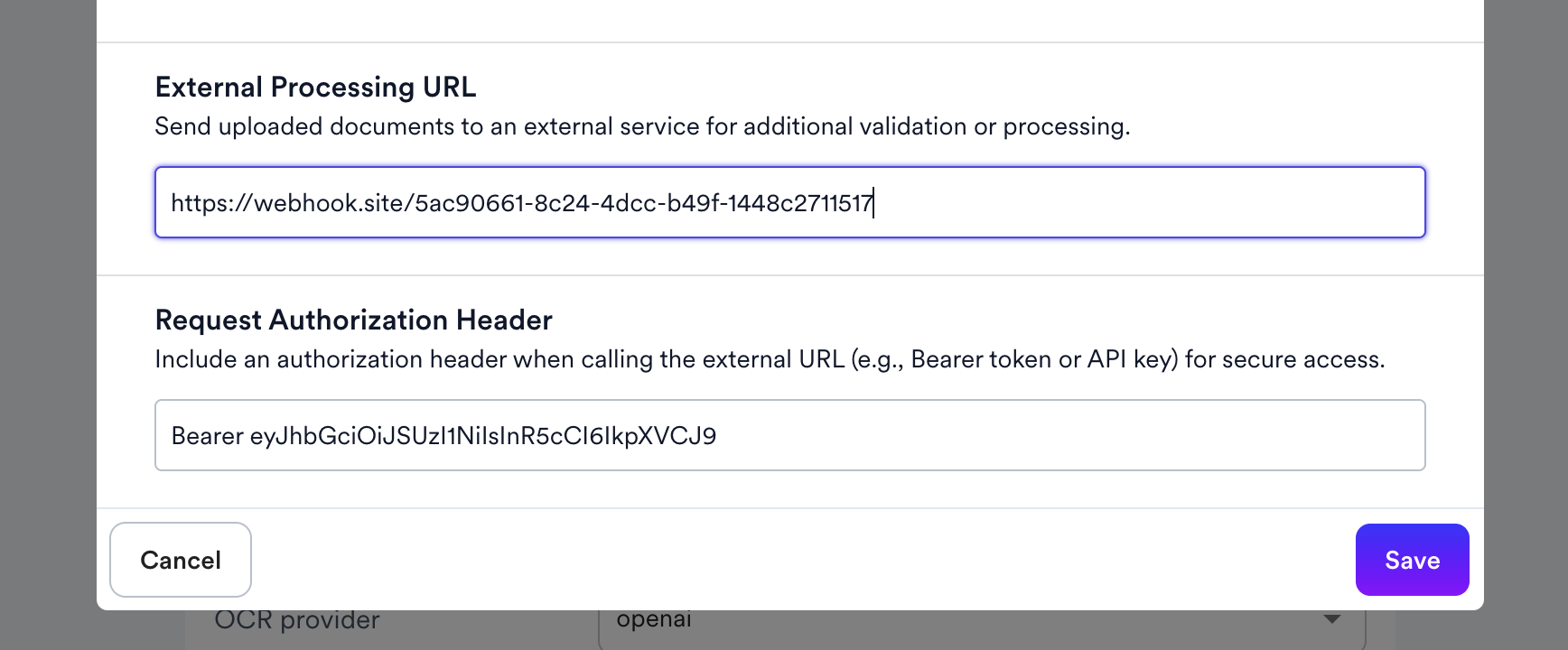
If your service requires authentication — which is strongly recommended — enter the full value of your authorization header in the Request Authorization Header field.
Fountain will send this value verbatim as the Authorization HTTP header on every request. Common formats include:
- A Bearer token:
Bearer eyJhbGciOiJSUzI1NiIsInR5cCI6IkpXVCJ9... - An API key:
ApiKey abc123secretkey - Basic auth:
Basic dXNlcjpwYXNzd29yZA==
Your service should validate this header on every incoming request and reject any request that does not include it.
What Happens If Your Service Is Unreachable
Fountain gives your service 10 seconds to respond. If your service is down, returns an error status code, or does not respond within 10 seconds, Fountain will ignore the external processing step entirely and fall back to its own auto-approval logic as if the External Processing URL was not configured.
This means:
- Fountain will not block the document submission or show an error to the worker.
- The document will proceed through Fountain's standard auto-approval flow.
- Your team will not be notified of the failure through the UI — monitor your own service logs if reliability is critical.
If you need to ensure that documents are never auto-approved without your service's input, the safest approach is to disable auto-approval entirely when your service is down, so all documents fall into manual review.
Step-by-Step: Configuring the Feature
- Open the Compliance section and navigate to the document requirement you want to configure.
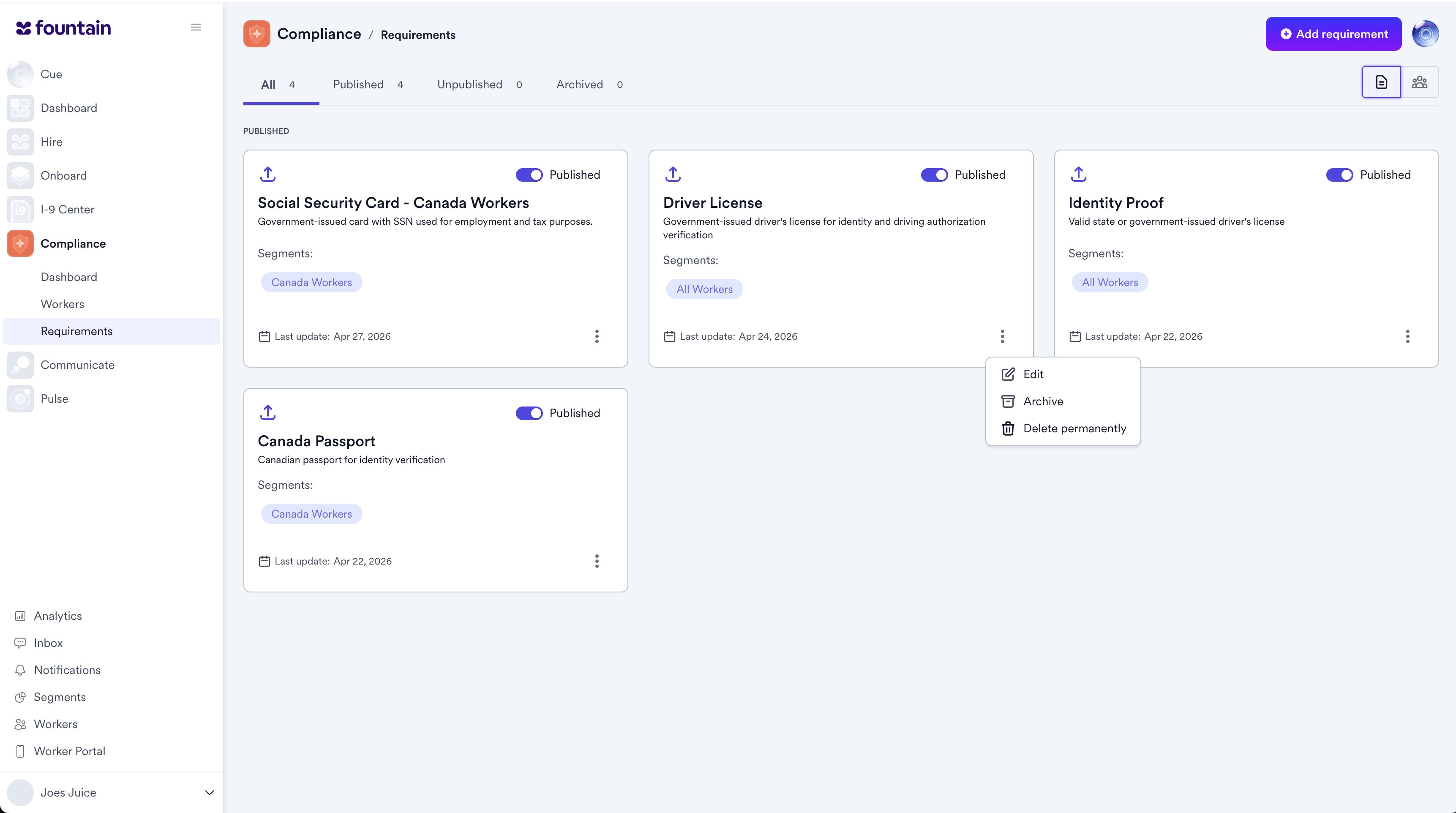
- Edit the document type, then click Optional settings.
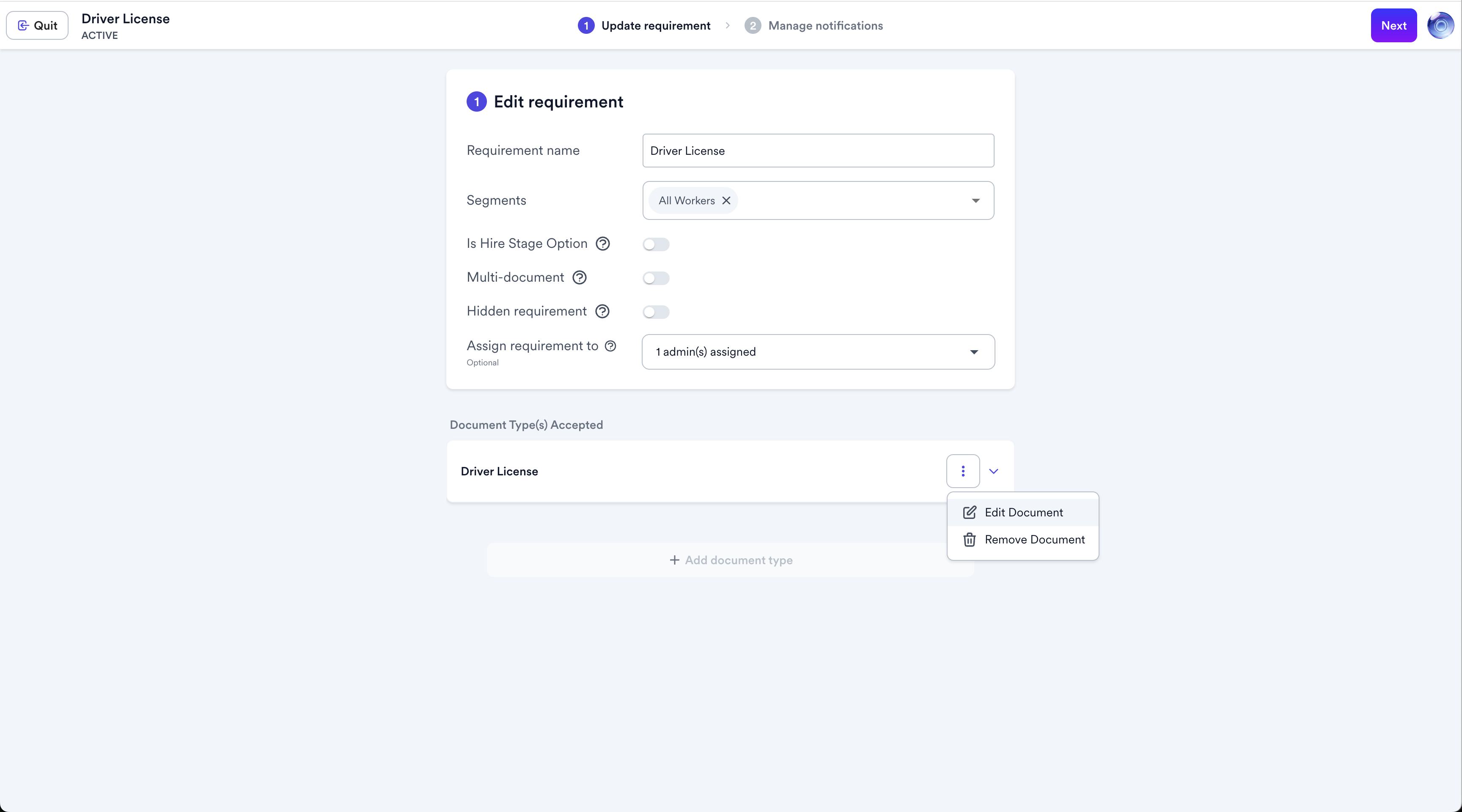
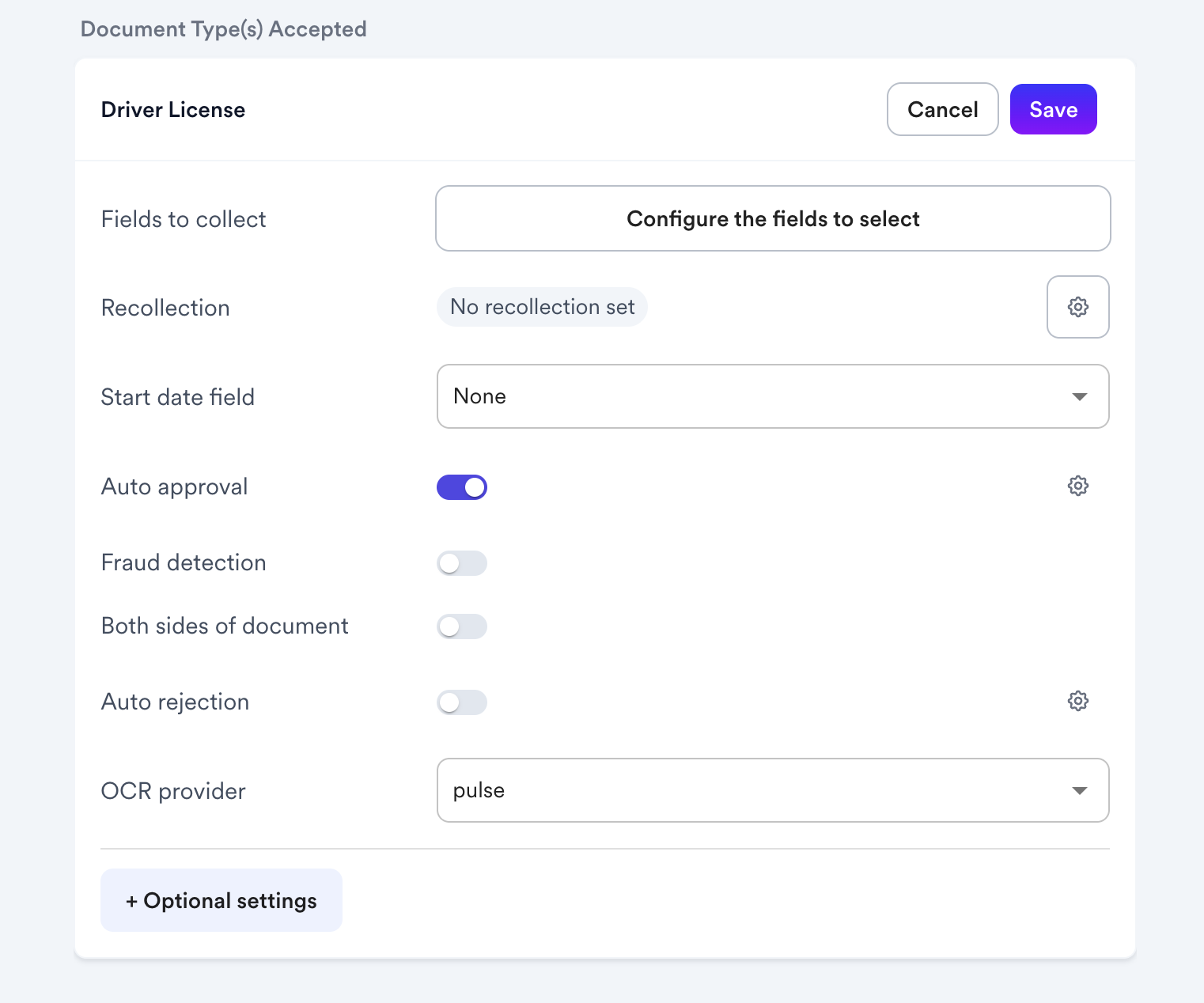
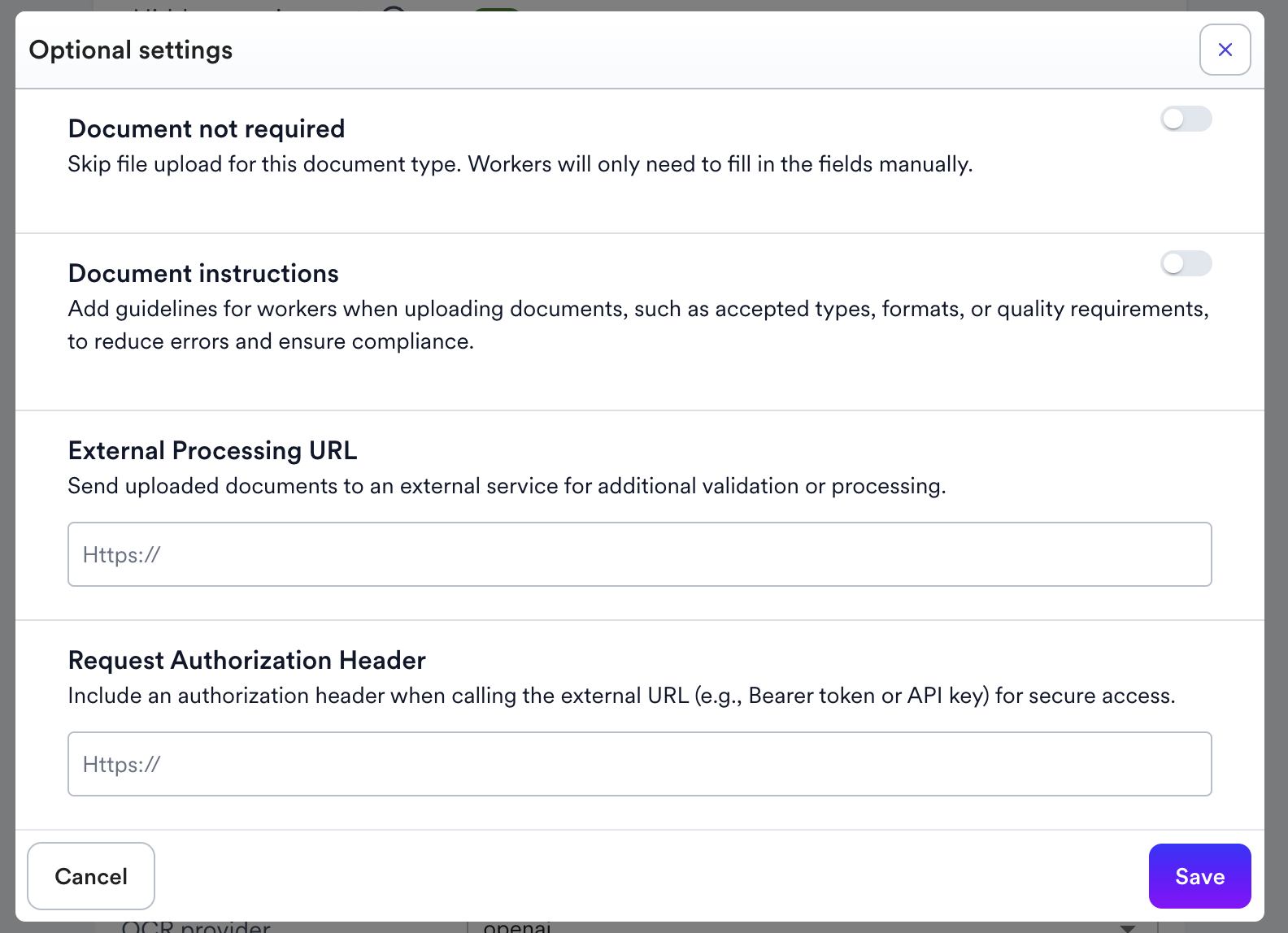
- In the Optional settings modal, look for the External Processing URL section near the bottom.
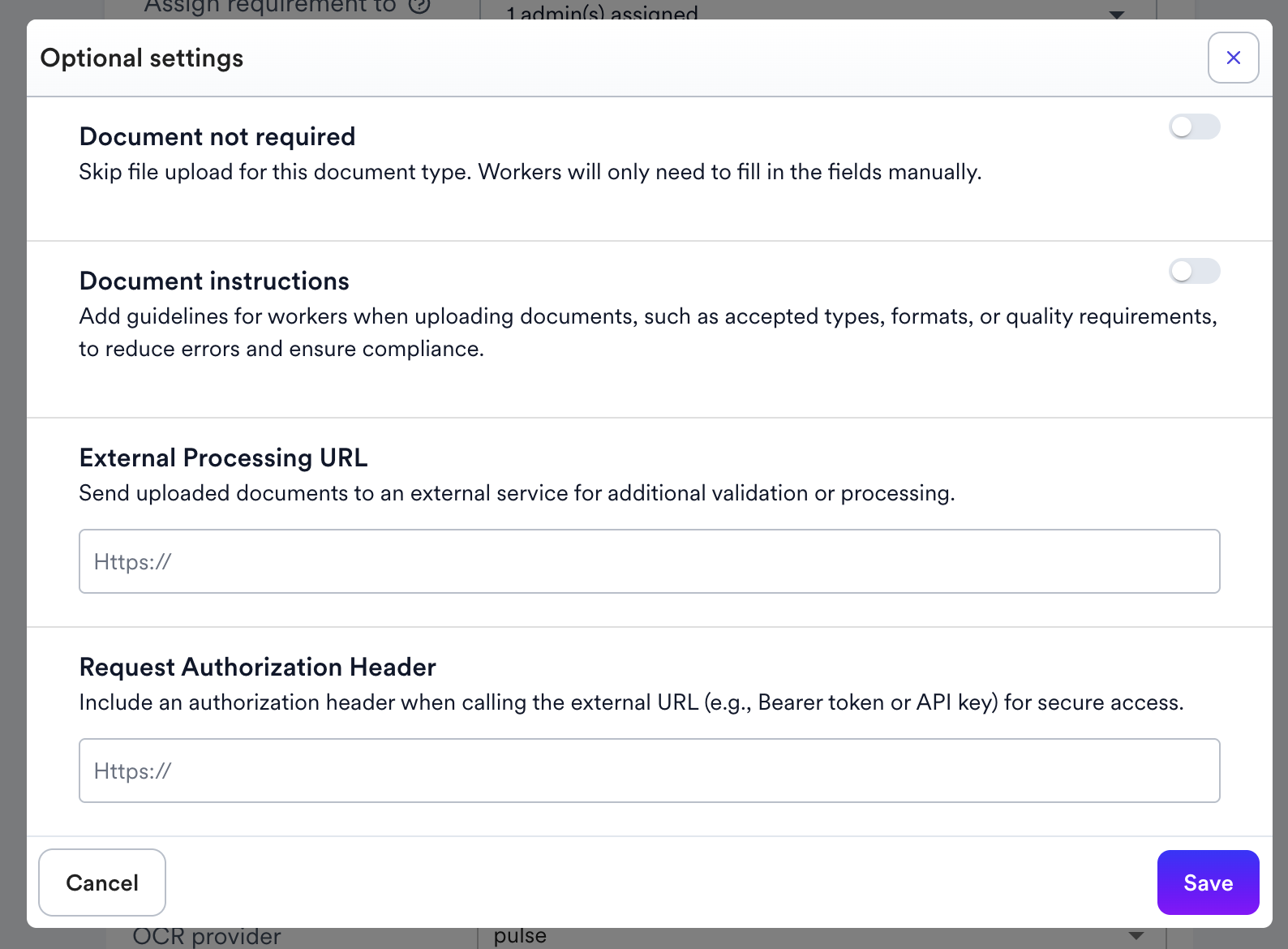
- Enter the full HTTPS URL of your service endpoint.
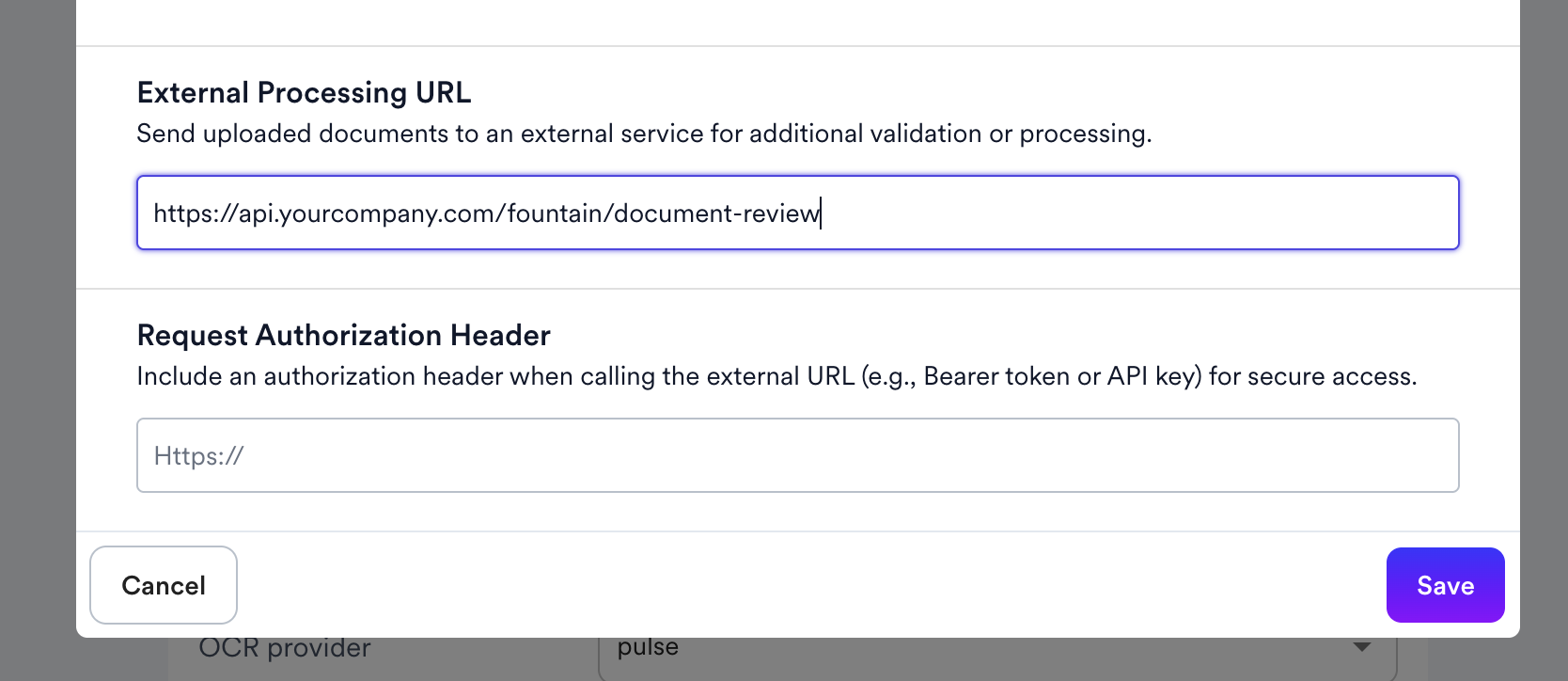
- (optional) Look for the Request Authorization Header section and enter your authorization value.
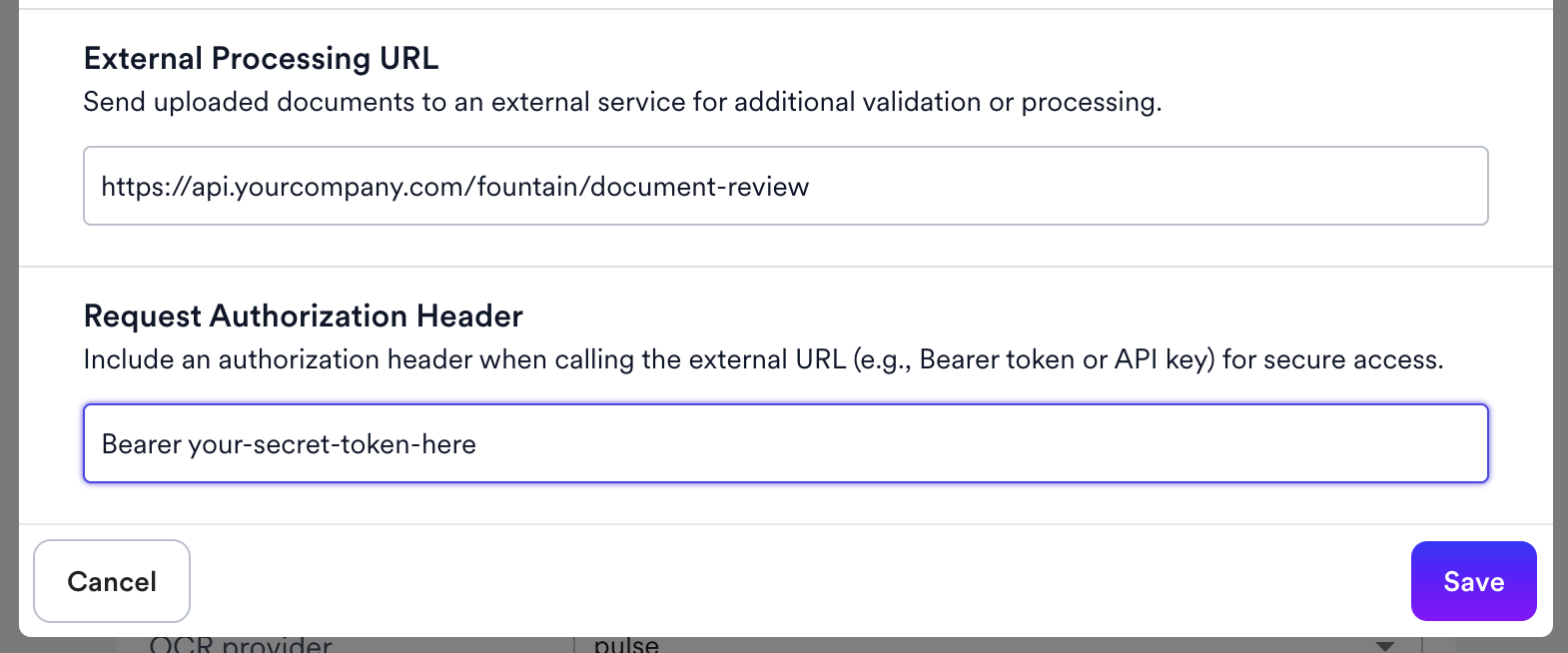
- Click Save.
Common Mistakes to Avoid
Returning forceAutoApprove: true as a default catch-all
If your service logic hits an error or an unhandled case and you return { "forceAutoApprove": true, "forceManualReview": false } as the fallback, every document that triggers your error path will be silently approved. Return { "forceAutoApprove": false, "forceManualReview": false } as your safe default so Fountain handles those cases on its own.
Expecting the call to fire when auto-approval is disabled
Your URL will not be called if auto-approval is turned off on the document type. If you're testing and not seeing calls arrive, check that auto-approval is enabled.
Using an HTTP (non-HTTPS) URL
The URL must begin with https://. Plain HTTP is not accepted.
Forgetting the Authorization header scheme prefix
The header value is sent exactly as you type it. If your service expects Bearer <token>, make sure you include the word Bearer and the space before the token in the field — not just the raw token string.
Assuming the call is guaranteed
Your service should never be the only safeguard. If it is unreachable, documents will still flow through Fountain's standard logic. Design your requirement's auto-approval settings with this in mind.
Summary
The External Processing URL lets your organization extend Fountain's document review with your own real-time decision logic. It fires synchronously after a worker submits a document and after Fountain's OCR has run, giving your service full context before the final status is recorded. Return forceAutoApprove: true to approve, forceManualReview: true to escalate to a human, or false for both to let Fountain decide. Always handle the safe-default case in your service to avoid accidental mass approvals, and monitor your service independently since Fountain will silently bypass it on failure.